- Make sure the printer is recognised by the base station.
- Select 'Add a new printer' in Windows
- Select 'Local Printer' in the dialog box (auto detect and install should be off), click next.
- Choose 'Create a new port' and "Standard TCP/IP Port'. Click next.
- For the printer IP address, enter the address of the base station ie. 192.169.0.112. The port name will be filled automatically. Click next.
- For the device type, choose 'Hewlet Packard Jet Direct', then click Finish.
- Choose your printer from the list and follow the rest of the prompts to install and configure the driver.
Showing posts with label Airport Express. Show all posts
Tuesday, December 7, 2010
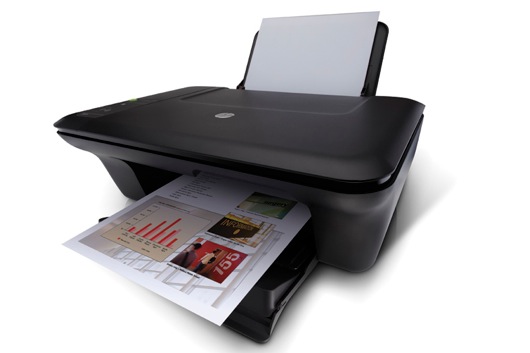
[How-To]: Setup HP Deskjet 2050 using Airport Express and Windows XP
I decided to buy Airport Extreme base station. I was looking forward to being able to share my HP Deskjet 2050 off the USB port but didn't know if my old XP PC would be able to use it. After much searching, I found these instructions and all is well:

Sunday, December 5, 2010
Bought an Airport Express 802.11n WiFi
- Today, I thought of getting a networking solution for my USB HDDs. I figured an Airport Express would be able to connect via its USB interface and make itself recognized on my Home network.
- The Airport Express seems to be out of stock almost in every Mac reseller shops (tried MacStudio and Low Yat and Berjaya, and also called all Machines outlet but to no avail).
- Finally called Epicentre and lucky enough they said there is stock available. Thus, took a drive to Pavillion to purchase the RM 369 Airport Extreme.
- The first I was trying to get it connected to my WiFi network. Using cable on Bridge Mode is quite easy and seamless.
- However, I have dificulty in getting the WDS to work (using main and remote mode). I configured my Time Capsule which is connected in Bridge Mode to be set as WDS (main) and the Airport Express (remote WDS) but it doesnt work.
- Finally, I tried the "Join the Wireless Network" setting and voila! It connects to one of the WiFi APs which I have set in my house.
- Streaming the audio the AE is quite easy but unfortunately I am unable to recognize any USB drives which are connected to its USB.
- A Google search showed that ONLY Airport EXTREME BS will be able to connect USB drives while Airport EXPRESS is NOT! Damn....!! There goes one of my feature to make a NAS of my USB drives.
- Finally, I connect all my Western Digital HDDs (2 units of 1TB drives) to the Time Capsule directly.
- And made my AE part of the Home Network....
Saturday, December 4, 2010
[How-To]: Configure Airport Express with Hotel Ethernet
Step by step to configure the AirPort Express in bridge mode is outlined below. Note that you will need to use the AirPort Utility application for this. On your Mac computer, it's located as follows:
Macintosh HD > Applications > Utilities > AirPort Utility.
Use AirPort Utility - Manual Setup to check some of your settings on the Express.
Power up the Express
Open your browser to see if the hotel's internet page will appear so you can agree to terms, pay fees, etc.
Once you agree, you should be on the internet and wireless should be working.
Macintosh HD > Applications > Utilities > AirPort Utility.
Use AirPort Utility - Manual Setup to check some of your settings on the Express.
- Click the Wireless tab below the row of icons
- Wireless Mode = Create a wireless network
- Wireless Network Name = Your choice
- Radio Mode = 802.11n (802.11b/g comatible)
- Wireless Security = WPA2 Personal or WPA/WPA2 Personal
- Wireless Password = Your choice
- Verify Password
- Connect Using = Ethernet
- Connection Sharing = Off (Bridge Mode)
- Update to save settings
Power up the Express
Open your browser to see if the hotel's internet page will appear so you can agree to terms, pay fees, etc.
Once you agree, you should be on the internet and wireless should be working.
Subscribe to:
Posts (Atom)